




WebSpots
網路補給站


隨時隨地架站不是夢!用 Cloudflare Tunnel 打造 HestiaCP 專屬的行動網頁伺服器
文章分享:
Cloudflare Tunnel 安裝與設定步驟
amd 64-bit(x86_64)
wget https://github.com/cloudflare/cloudflared/releases/latest/download/cloudflared-linux-amd64
chmod +x cloudflared-linux-amd64
sudo mv cloudflared-linux-amd64 /usr/local/bin/cloudflared
ARM 64-bit(aarch64 / arm64)
wget https://github.com/cloudflare/cloudflared/releases/latest/download/cloudflared-linux-arm64
chmod +x cloudflared-linux-arm64
sudo mv cloudflared-linux-arm64 /usr/local/bin/cloudflared
強化 UDP buffer 以支援高負載流量
若使用 cloudflare tunnel 則無效果,對高流量網站非使用 cloudflare tunnel 則可提高 UDP buffer
vim /etc/sysctl.conf
net.core.rmem_max = 33554432
net.core.wmem_max = 33554432

net.core.rmem_default = 1048576
net.core.wmem_default = 1048576

net.ipv4.tcp_rmem = 4096 87380 67108864
net.ipv4.tcp_wmem = 4096 65536 67108864

net.core.netdev_max_backlog = 5000

# ICMP Proxy
net.ipv4.ping_group_range = 0 2147483647
執行下列指令立即生效
sysctl -p
使用 HestiaCP 使用者帳號登入 Cloudflare 並建立安全通道
建立並命名 Cloudflare Tunnel
cloudflared tunnel login複製網址列,並將它貼上瀏覽器登入你 cloudflare 帳號選擇你要加入這個 tunnel 的網域,成功後會自動在使用者的家目錄建立 .cloudflared 的資料夾

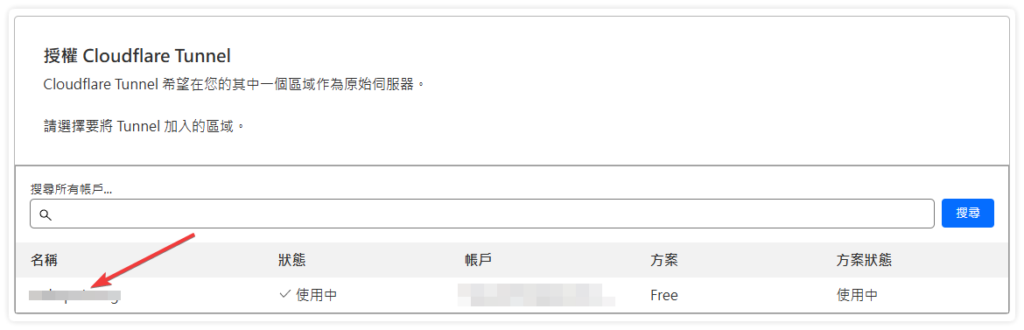
建立 cloudflare tunnel 通道名稱
建立連線名稱 mytunnel 請自行命名
cloudflared tunnel create mytunnel
建立子網域映射與通道設定
下列指令會自動在你授權的域名上自動建立一個 CNAME
cloudflared tunnel route dns mytunnel mytunnel.mydomain.com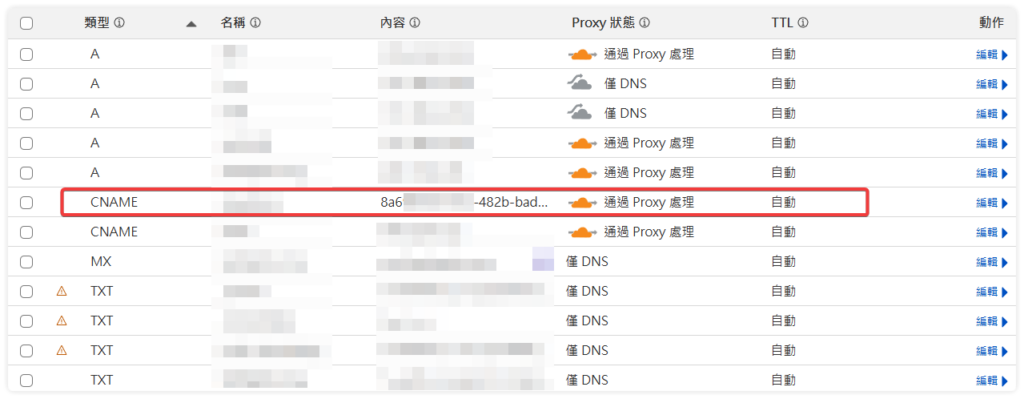
撰寫並設定 config.yml 配置檔
cd ~/.cloudflared
touch config.yml
tunnel: your_connect_id
credentials-file: /home/user/.cloudflared/your_connect_id.json

ingress:
  - hostname: mytunnel.mydomain.com
    service: http://10.10.10.40:80
    originRequest:
      originServerName: mytunnel.mydomain.com
      httpHostHeader: mytunnel.mydomain.com
      noTLSVerify: true
      setRequestHeader:
        CF-Connecting-IP: "{clientIP}"

  - service: http_status:404
啟動 Cloudflare Tunnel 並測試連線
cloudflared tunnel run mytunnel基本通道狀態檢查
cloudflared tunnel info mytunnelDNS 解析驗證
nslookup mytunnel.mydomain.com打通 Hestia Control Panel 管理介面
修改 HestiaCP 的 Nginx 設定檔
因為我們是用 Cloudflare Tunnel 來做為 HestiaCP 管理介面的 DNS 所以必須修改管理介面的設定檔,讓 SSL 交由 Cloudflare Tunnel 接管
HestiaCP 的 Nginx 設定檔路徑與修改
vim /usr/local/hestia/nginx/conf/nginx.conf
# 找到 listen port 那行將後面的 ssl 刪除
 server {
                listen              2083;   # 在這一行將 8083 後的 ssl 刪除
#               listen              [::]:2083 ssl;
                server_name         _;
                root                /usr/local/hestia/web;
                # Fix error "The plain HTTP request was sent to HTTPS port"
                error_page          497 https://$host:$server_port$request_uri;
                error_page          403 /error/404.html;
                error_page          404 /error/404.html;
                error_page          410 /error/410.html;
                error_page          500 501 502 503 504 505 /error/50x.html;

                ssl_certificate     /usr/local/hestia/ssl/certificate.crt;
                ssl_certificate_key /usr/local/hestia/ssl/certificate.key;
                .
                .
                .
               略
               location / {
                        expires off;
                        index index.php;
                                # 加入以下4項 proxy_set_header 設定將訪客的ip正確轉發
                        proxy_set_header Host $host;
                        proxy_set_header X-Real-IP $remote_addr;
                        proxy_set_header X-Forwarded-For $proxy_add_x_forwarded_for;
                        proxy_set_header CF-Connecting-IP $http_cf_connecting_ip;
                }
# 修改好存檔後 restart
nginx -t
systemctl restart nginx
systemctl restart hestia
HestiaCP 的 Cloudflare Tunnel config.yml 設定
tunnel: your_connect_id
credentials-file: /home/user/.cloudflared/your_connect_id.json

ingress:
  - hostname: hestia.mydomain.com
    service: http://localhost:2083
# Cloudflare 官方支援的 Port 443, 2053, 2083, 2087, 2096, 8443
    originRequest:
      httpHostHeader: hestia.mydomain.com:2083
  - service: http_status:404
phpMyAdmin 的 Cloudflare Tunnel config.yml 設定
tunnel: your_connect_id
credentials-file: /home/user/.cloudflared/your_connect_id.json

ingress:
  # phpMyAdmin 走 Web Server (your-ip) 此設定區域必須在 hestiacp 之前
  - hostname: hestia.mydomain.com
    path: /phpmyadmin*
    service: http://your-ip:80
    originRequest:
      httpHostHeader: hestia.mydomain.com
解決 WordPress 運作中的 404 與重導向問題
啟用 WordPress 固定網址(Permalink)Rewrite 功能
.htaccess 補上正確 WordPress rewrite 規則內頁瀏覽才能正確
touch .htaccess
chmod 644 .htaccess
# BEGIN WordPress

RewriteEngine On
RewriteBase /
RewriteRule ^index\.php$ - [L]
RewriteCond %{REQUEST_FILENAME} !-f
RewriteCond %{REQUEST_FILENAME} !-d
RewriteRule . /index.php [L]

# END WordPress
停用 HestiaCP 的 HTTPS 強制重導交由 Cloudflare 處理
編輯 nginx.conf 以支援 SSL 與 Cloudflare Tunnel:
sudo vim /home/user/conf/web/mytunnel.mydomain.com/nginx.conf
server {
        listen      192.168.0.19:80;
        server_name mytunnel.mydomain.com ;
        error_log   /var/log/apache2/domains/mytunnel.mydomain.com.error.log error;
# 將下列註解
#       include /home/user/conf/web/mytunnel.mydomain.com/nginx.forcessl.conf*;

#       location ~ /\.(?!well-known\/|file) {
#               deny all;
#               return 404;
#       }
        location / {
                proxy_pass http://192.168.0.19:8080;

# 加入以下4項 proxy_set_header 設定將訪客的ip正確轉發
                proxy_set_header Host $host;
                proxy_set_header X-Real-IP $remote_addr;
                proxy_set_header X-Forwarded-For $proxy_add_x_forwarded_for;
                proxy_set_header CF-Connecting-IP $http_cf_connecting_ip;
                .
                .
                .
                .
sudo nginx -t
sudo service nginx reload
編輯 apache2.conf 以支援 SSL 與 Cloudflare Tunnel:
這樣是為了讓 apache 正確的接收來自 nginx 正確 IP
sudo vim /home/user/conf/web/mytunnel.mydomain.com/apache2.conf
新增 RemoteIP 放在 VirtualHost 區塊內即可,例如:
<VirtualHost 192.168.0.19:8080>
    ServerName mytunnel.mydomain.com

    RemoteIPHeader CF-Connecting-IP
    RemoteIPInternalProxy 127.0.0.1
    RemoteIPInternalProxy 192.168.0.19

    ...
</VirtualHost>
sudo service apache2 restart
確保 WordPress 能正確認知 HTTPS 狀態
wp-admin 才能正常不會落入多重轉址導致不正常
wp-config.php 最前端加上:
//加上這段 wp-admin 才能正常轉址
// 若後端位於內網並由 reverse proxy (cloudflared) 轉送,強制 WordPress 認為是 HTTPS
// 最佳化後的 HTTPS 判斷
if (
    // 檢查 Cloudflare Tunnel/CDN 傳遞的標準 header
    (isset($_SERVER['HTTP_X_FORWARDED_PROTO']) && $_SERVER['HTTP_X_FORWARDED_PROTO'] === 'https') ||

    // 檢查 Cloudflare 傳遞的 CF-Visitor JSON header
    (isset($_SERVER['HTTP_CF_VISITOR']) && strpos($_SERVER['HTTP_CF_VISITOR'], '"scheme":"https"') !== false) ||

    // 檢查 Cloudflare 傳遞的真實 IP header,確保某些外掛正確運作
    isset($_SERVER['HTTP_CF_CONNECTING_IP'])
) {
    $_SERVER['HTTPS'] = 'on';

    // 為了讓 WordPress 記錄正確的訪客 IP,而非 Incus/Cloudflared 的內網 IP
    if (isset($_SERVER['HTTP_CF_CONNECTING_IP'])) {
        $_SERVER['REMOTE_ADDR'] = $_SERVER['HTTP_CF_CONNECTING_IP'];
    }
}
HTTPS 與憑證驗證
檢查 HTTP 狀態碼是否為 200 OK
SSL 憑證是否正確由 Cloudflare 提供
curl -I -v -H "Host: mytunnel.mydomain.com" http://192.168.0.19:8080/wp-admin/
設定開機自動執行 Cloudflare Tunnel
如果要讓 tunnel 長期跑,最好建一個 systemd service:
新增 cloudflared.service
sudo vim /etc/systemd/system/cloudflared.service[Unit]
Description=cloudflared tunnel
After=network-online.target
Wants=network-online.target
[Service]
ExecStart=/usr/local/bin/cloudflared tunnel run myTunnel
Restart=always
User=cloudflared_user
Environment=HOME=/home/user
[Install]
WantedBy=multi-user.target
開機自動執行
sudo systemctl daemon-reload
sudo systemctl enable --now cloudflared
啟用並測試
sudo systemctl start cloudflared